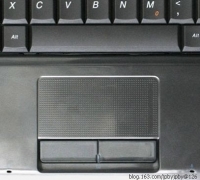
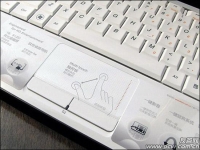
Touchpad is the most widely used mobile pc, mouse, touch pad senses the finger from a piece of the trajectory of the pressure-sensitive plate and two buttons, two buttons is equivalent to the standard left and right mouse button. Touchpad is no mechanical wear, the control accuracy is also good, most importantly, it is easy to operate, very easy to use for beginners, some mobile pc even touch the template for the tablet function expansion can be used for handwritten Chinese character input. However, the disadvantage is that the user's fingers, wet or dirty, then control it is not so effortless.
Translated by Google
Some historical background of the touchpad
Touchpad, English call the touchpad, some system manufacturers also call it a tablet (in fact, and our traditional sense of the tablet are different), but some of the touch pad with a particular software also supports handwriting input, ibm laptop on most of them have this feature. Touchpad on the historical background, I will not go fine, and not afraid of us laughed, actually I do not know:). The reason why understanding the historical background, is to use the touchpad to tell you now who is the production, there are some internal things. The world's most famous manufacturer of the touchpad is a synaptics - its production of "new thinking touchpad" throughout the world, that is, this article describes it as an example. Perhaps when we purchase a laptop, will face the choice of many brands, but they actually use many of the same components, such as the lcd panel, drive, hard drive (the world's only Toshiba, Hitachi, Fujitsu, notebook hard drive manufacturer Seagate four) , processor, memory, touch pad, etc., today's hero is the touchpad it, have the opportunity to be introduced to other parts. Synopsys tablet's position in the industry, like the intel processor in the same, because it has excellent touch and powerful programmability, so it is widely adopted by well-known brands, such as ibm, dell, hp, toshiba , samsung, etc., then these companies has developed a notebook for their own specific features. If the price is not very sensitive, I think your laptop is to use the new thinking of the touchpad. Touchpad to be informed by the capacitive sensing the movement of your fingers, the fingers are not sensitive to heat. When your fingers touch the board, the board surface of the electrostatic field will change. Touchpad sensor is a printed board conductivity on the surface of the finger trajectory line. The touchpad below the surface in a special circuit board will continue with the measurement and reporting of this track, so explore your finger movements and location.
Translated by Google
A prerequisite for advanced functions
触摸板 实现高级功能的前提条件
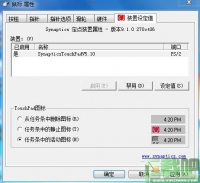
Computer parts and other electronic products is quite different, because all of its hardware to communicate with the operating system to function properly functioning, and equipment associated with the operating system kernel Zhuyao through the driver. System can identify the touchpad on the premise that the driver installed, install the new operating system, the touch pad have been equipped with some basic functions, but if you want to explore its full potential, we must install the latest proprietary drivers program, as well as specific applications, performance and functionality to be able to play vividly. CD-ROM drive that came with the machine, it should have already have these programs, but it is recommended that you to the device manufacturer's website to download the latest, and by the Microsoft certified drivers to ensure maximum performance and stability. Let's look at the new thinking of the touchpad after installing the drivers, what are the characteristics. By "fixed signs", we can conduct a series of _set_tings, such as direct access to the "fixed unit property", the "stress graph" and "moodpad" _set_, as well as "tap invalid" and so on, some of these tips will be described in detail. Control Panel "Mouse Properties" has a lot more special features, these _set_tings can be achieved through the synaptics touchpad power, as well as programmable techniques, all to do on your personal preference, really do not make good use of the touchpad difficult.
Translated by Google
Tips
触摸板 使用技巧
Specific driver installed, and make certain _set_tings, the touchpad can we achieve the following main functions: tapping on the touch pad instead of button, no button you can drag and drop icons, windows and other objects, adjust touchpad's sensitivity, custom buttons and tapping the corner area of the function, hand checking (to prevent accidental movement of the pointer while typing), the local content of the document zoom in / out, etc. (only valid for Microsoft IntelliMouse), following on the We explained in detail. We only need to tap on the touch pad, you can complete the left mouse button and the touchpad left button of the same functions, and faster to use than buttons, and more convenient. If we need to double-click it, you only need two consecutive tapping on it. But they also need to pay attention to knock some issues to be mild and quick speed, slow sticky is poor. If we need to move an application, such as icons or windows, we need to move the pointer over the application, hold down the mouse or the touchpad button, then drag the application to an end position and then let go on it . However, we can achieve this functionality with touch pad, and convenient. As follows: _Select_ed target: move the pointer to the target, then a half-tap (the - the - next) - tapping twice in rapid succession, the fingers remain in the second "down" areas Drag the target: a finger sliding on the tablet panel to make the move to the _select_ed target end position to lay down goals Perhaps we have some questions, "when I drag, slide a finger touchpad border, then how should I do?", In fact, we do not need to worry about, because new ideas have a tablet called "drag lock "feature that allows we will not drag your finger from the touchpad and cause disruption. In this way, we only need a few drag target can drag across the screen, if you want to terminate this feature, just tap on the board once again on it. We can adjust the "touch sensitivity" finger on the touch pad to control the size of the pressure, so that it can more nimbly to the contact fingers on the plate to react. If the "touch sensitivity" is _set_ to a higher value (touch) when the tablet will recognize a very slight touch of a finger; If you find that the pointer moves too erratic or high humidity environment, it should _set_ this value to "heavy touch" drag (reduced sensitivity). Conversely, a lower sensitivity value will require a heavier exposure to your fingers to make the board move the pointer, for example, you must strike hard and sometimes the touch pad or touch pad does not respond, you'll need the slider to "touch" drag (increased sensitivity). In general, the lighter the touch the most effective. There is also a sensitivity known as the "palm pressure sensor", it is also more useful. For example, we use the keyboard when typing, and sometimes other parts of the palm or hand would occasionally run into the touchpad surface; This will cause the pointer moves across the screen, or the tapping unexpected will happen. If the touch pad cursor movement or unnecessary keystrokes, we can increase the "palm pressure sensor," the _set_ting; If the touch pad does not move or perform the necessary strike, you can reduce the "palm pressure sensor," _set_ value. If the slider in the red zone, it is highly likely the latter. Most of the touch pad only two buttons, its role is to replace the traditional mouse buttons, but the touchpad powerful programmability, allows us to customize the unique features of these two buttons. Tapping on the touch pad and pressing a button the same role, for example, tapping the region in the middle of the board is equivalent to press the left button, but otherwise, we can define the four corners of the touchpad into a different button, these special corner called "the corner tap zone." Therefore, using the four corners of the tapping area and tapping the tablet in the middle area, there are two buttons on the original, we can put into a touchpad with a seven-button mouse. How, said touch pad mouse also powerful than traditional easy to use it. Suppose we want to become a three-button touchpad mouse. Then we can define the left button touchpad mouse middle button; because the total is equivalent to tapping on the touch pad by the left mouse button, while pressing the right button as the mouse right button, so we have a three button . If we take into account the need for convenience, can be further defined in the top right corner of the touchpad tapping of the region by tapping the right mouse button. Consider the following schematic example touchpad corner tap zone in its upper right corner of the tapping area (indicated with a red slash) within the tapping became press the right mouse button, but the touchpad on any other area (gray area) is by tapping the left mouse button. Synopsys touchpad to "corner tap zones" _set_ a lot of features, in addition to other manufacturers if we installed the touchpad embedded software, you can also try to join the original button functions. Synopsys touchpad default _set_tings functions: Auto Tiaodao start button, automatic Tiaodao application menu, the window is maximized, minimize the window, it will be the current window up / down / left / right scroll, the left mouse button Double-click the browser's back page / forward page, refresh the browser, open the default web page, stop the search page forward / back page, press the up / down / left / right arrow keys, record and repeat a series of keyboard operation, running a _select_ed procedures. Automatically jump to the "Start" button. This feature makes the cursor jumps automatically to the operating system taskbar "Start" button and open the "Start" menu. Automatically jump to the application's menu. This feature makes the cursor jump to being used in the application menu in the left-most menu (usually "File" menu), and automatically lists the options of this menu list. To minimize the current window. This feature will be the application to minimize the current window. If this window had been reduced to a minimum, then this function will return to its original window location and size. Put the current window to the maximum. This function will put the application to the largest (covering the whole screen). If the window is already being put to the maximum, then this function will return to its original window location and size. Run a _select_ed program. You can also _select_ an application (in the corner with the button or tap the area corresponding to the options column, by clicking on "Run the _select_ed program", then the program name in the pop up dialog box, enter the name of the program ), so that when you press the button or tapping in the corner tap zone look, the program will be run automatically. Look through This time _set_ting, whether that work together faster and more convenient? If you want to define these buttons or tapping the corner area of the feature, located in Control Panel "Mouse Properties" control panel in the "button on the Properties" page to _set_ up. You can customize the touchpad is not only a "corner tap zone", you can also define the strike zone size. On the graph represents the touchpad surface, while the figure covered the site of cross-shaded lines show the activities of the touchpad surface strike zone. You put your finger on the touchpad when, touchpad edges of some arrow graphics to indicate the location of the finger. If your fingers on the touchpad is located in an active strike zone, striking graphics in the corresponding area will turned into solid color. Drag the shadow lines cross the region, a small black box corner to zoom in or out strike zone. If you are unable to activate the function of a strike zone, trying to enlarge the strike zone. If a feature is too easy to activate the strike zone, trying to narrow the strike zone. "Virtual scrolling" function is equivalent to the mouse wheel, _set_ up, we do not need to move the pointer, only need to slide your finger up and down the edge of the touchpad, the contents of the document will be before and after the (vertical) scroll. Similarly, the low end of our finger on the touch pad sliding around the edge of the document content will be about (horizontal) scroll. So, you never will not a small effort to move the pointer over the scroll bar, you can freely scroll through a document and do not care where the cursor pointer. Applies not only to the virtual scroll word processing documents, spreadsheets and large digital images can also be used in the file menu, font menu, and other options can be scrolled. As a rule, you can always be applied to any virtual scroll the window with scroll bars. In addition, the virtual scroll with the document also allows you to scroll with the scroll bar to scroll more than smooth. If you use the mouse to drag the scroll bar thumb, only when you scroll down the block, the window will reproduce the contents of the file; and virtual scrolling makes roll (turn) move more clearly and easily, because it is strong scroll to reproduce the contents of the file. To use the virtual scroll, the properties of the touchpad to first open the "Enable vertical scrolling" and "Enable horizontal scrolling." In addition, the virtual scroll has three primary functions, namely the "long roll", "scroll areas" and "scroll." "Free scroll" feature makes it easy to scroll through the long file. Enable free scroll, scroll your finger from the touchpad to continue after the virtual. To use the free-spin, with a smooth and consistent action to move and lift a finger. To stop the free-spin, the finger back into the touchpad surface. On the graph represents the touchpad surface. Figure covers the site of cross-shaded lines show the surface of the touchpad virtual scrolling area. You put your finger on the touchpad when, touchpad edges of some arrow graphics to indicate the location of the finger. If a virtual finger on the touchpad to scroll in the area, the corresponding virtual scrolling graphics area will become solid color. Drag the shadow lines cross the edge of the small black box area to zoom in or out of the virtual scroll area. If you can not activate the virtual scrolling feature, try to enlarge the virtual scroll area, that cross the shadow line moves to the inside of the border region. If the virtual scroll too easy to activate, try to shrink the virtual scroll area.
Translated by Google
Other
触摸板 其它
We can also control the cursor movement, in order to achieve a more subtle touch pad control purposes. Such as restrictions on movement, slow motion, viscous boundary, the cursor is refreshed, the boundary movement - "Border Campaign" designed to simplify the distance the cursor movement. When the finger reaches the boundary of touchpad, the cursor will move along the same direction until the finger release. Boundary movement, as well as regional and velocity of motion allows us to fine-tune. Where we can control the border movement range, speed or pressure control with your fingers or use a fixed speed. In addition, in the bottom right corner of the "fixed signs," we can directly access the following options, such as "fixed-point device properties", "pressure Graphics", "moodpad" and "tap invalid." With these capabilities, we can better fine-tuning of the touchpad.
Translated by Google
Summary
I believe after reading this article, if we have to understand, basically you can put an external mouse to throw aside, while preparing to buy the optical mouse can also save money with friends. In fact, life is not a lack of beauty, but we did not find it around it.
Translated by Google
Tips
Specific driver installed, and make certain _set_tings, the touchpad can we achieve the following main functions: tapping on the touch pad instead of button, no button you can drag and drop icons, windows and other objects, adjust touchpad's sensitivity, custom buttons and tapping the corner area of the function, hand checking (to prevent accidental movement of the pointer while typing), the local content of the document zoom in / out, etc. (only valid for Microsoft IntelliMouse), following on the We explained in detail. We only need to tap on the touch pad, you can complete the left mouse button and the touchpad left button of the same functions, and faster to use than buttons, and more convenient. If we need to double-click it, you only need two consecutive tapping on it. But they also need to pay attention to knock some issues to be mild and quick speed, slow sticky is poor. If we need to move an application, such as icons or windows, we need to move the pointer over the application, hold down the mouse or the touchpad button, then drag the application to an end position and then let go on it . However, we can achieve this functionality with touch pad, and convenient. As follows: _Select_ed target: move the pointer to the target, then a half-tap (the - the - next) - tapping twice in rapid succession, the fingers remain in the second "down" areas Drag the target: a finger sliding on the tablet panel to make the move to the _select_ed target end position to lay down goals Perhaps we have some questions, "when I drag, slide a finger touchpad border, then how should I do?", In fact, we do not need to worry about, because new ideas have a tablet called "drag lock "feature that allows we will not drag your finger from the touchpad and cause disruption. In this way, we only need a few drag target can drag across the screen, if you want to terminate this feature, just tap on the board once again on it. We can adjust the "touch sensitivity" finger on the touch pad to control the size of the pressure, so that it can more nimbly to the contact fingers on the plate to react. If the "touch sensitivity" is _set_ to a higher value (touch) when the tablet will recognize a very slight touch of a finger; If you find that the pointer moves too erratic or high humidity environment, it should _set_ this value to "heavy touch" drag (reduced sensitivity). Conversely, a lower sensitivity value will require a heavier exposure to your fingers to make the board move the pointer, for example, you must strike hard and sometimes the touch pad or touch pad does not respond, you'll need the slider to "touch" drag (increased sensitivity). In general, the lighter the touch the most effective. There is also a sensitivity known as the "palm pressure sensor", it is also more useful. For example, we use the keyboard when typing, and sometimes other parts of the palm or hand would occasionally run into the touchpad surface; This will cause the pointer moves across the screen, or the tapping unexpected will happen. If the touch pad cursor movement or unnecessary keystrokes, we can increase the "palm pressure sensor," the _set_ting; If the touch pad does not move or perform the necessary strike, you can reduce the "palm pressure sensor," _set_ value. If the slider in the red zone, it is highly likely the latter. Most of the touch pad only two buttons, its role is to replace the traditional mouse buttons, but the touchpad powerful programmability, allows us to customize the unique features of these two buttons. Tapping on the touch pad and pressing a button the same role, for example, tapping the region in the middle of the board is equivalent to press the left button, but otherwise, we can define the four corners of the touchpad into a different button, these special corner called "the corner tap zone." Therefore, using the four corners of the tapping area and tapping the tablet in the middle area, there are two buttons on the original, we can put into a touchpad with a seven-button mouse. How, said touch pad mouse also powerful than traditional easy to use it. Suppose we want to become a three-button touchpad mouse. Then we can define the left button touchpad mouse middle button; because the total is equivalent to tapping on the touch pad by the left mouse button, while pressing the right button as the mouse right button, so we have a three button . If we take into account the need for convenience, can be further defined in the top right corner of the touchpad tapping of the region by tapping the right mouse button. Consider the following schematic example touchpad corner tap zone in its upper right corner of the tapping area (indicated with a red slash) within the tapping became press the right mouse button, but the touchpad on any other area (gray area) is by tapping the left mouse button. Synopsys touchpad to "corner tap zones" _set_ a lot of features, in addition to other manufacturers if we installed the touchpad embedded software, you can also try to join the original button functions. Synopsys touchpad default _set_tings functions: Auto Tiaodao start button, automatic Tiaodao application menu, the window is maximized, minimize the window, it will be the current window up / down / left / right scroll, the left mouse button Double-click the browser's back page / forward page, refresh the browser, open the default web page, stop the search page forward / back page, press the up / down / left / right arrow keys, record and repeat a series of keyboard operation, running a _select_ed procedures. Automatically jump to the "Start" button. This feature makes the cursor jumps automatically to the operating system taskbar "Start" button and open the "Start" menu. Automatically jump to the application's menu. This feature makes the cursor jump to being used in the application menu in the left-most menu (usually "File" menu), and automatically lists the options of this menu list. To minimize the current window. This feature will be the application to minimize the current window. If this window had been reduced to a minimum, then this function will return to its original window location and size. Put the current window to the maximum. This function will put the application to the largest (covering the whole screen). If the window is already being put to the maximum, then this function will return to its original window location and size. Run a _select_ed program. You can also _select_ an application (in the corner with the button or tap the area corresponding to the options column, by clicking on "Run the _select_ed program", then the program name in the pop up dialog box, enter the name of the program ), so that when you press the button or tapping in the corner tap zone look, the program will be run automatically. Look through This time _set_ting, whether that work together faster and more convenient? If you want to define these buttons or tapping the corner area of the feature, located in Control Panel "Mouse Properties" control panel in the "button on the Properties" page to _set_ up. Not only can you customize the touchpad "tap the corner area", you can also define the strike zone size. On the graph represents the touchpad surface, while the figure covered the site of cross-shaded lines show the activities of the touchpad surface strike zone. You put your finger on the TouchPad time, TouchPad edge of some arrow graphic to indicate the location of the finger. If a finger on the TouchPad in strike activity in the area, the corresponding strike zone graphics will become a real color. Drag the shadow lines cross the region, a small black box corner to zoom in or out strike zone. If you are unable to activate the function of a strike zone, trying to enlarge the strike zone. If a feature is too easy to activate the strike zone, trying to narrow the strike zone. "Virtual scrolling" function is equivalent to the mouse wheel, _set_ up, we do not need to move the pointer, only need to slide your finger up and down the edge of the touchpad, the contents of the document will be before and after the (vertical) scroll. Similarly, the low end of our finger on the touch pad sliding around the edge of the document content will be about (horizontal) scroll. So, you never will not a small effort to move the pointer over the scroll bar, you can freely scroll through a document and do not care where the cursor pointer. Applies not only to the virtual scroll word processing documents, spreadsheets and large digital images can also be used in the file menu, font menu, and other options can be scrolled. As a rule, you can always be applied to any virtual scroll the window with scroll bars. In addition, the virtual scroll with the document also allows you to scroll with the scroll bar to scroll more than smooth. If you use the mouse to drag the scroll bar thumb, only when you scroll down the block, the window will reproduce the contents of the file; and virtual scrolling makes roll (turn) move more clearly and easily, because it is strong scroll to reproduce the contents of the file. To use the virtual scroll, the properties of the touchpad to first open the "Enable vertical scrolling" and "Enable horizontal scrolling." In addition, the virtual scroll has three primary functions, namely the "long roll", "scroll areas" and "scroll." "Free scroll" feature makes it easy to scroll through the long file. Enable free scroll, scroll your finger from the TouchPad to continue after the virtual. To use the free-spin, with a smooth and consistent action to move and lift a finger. To stop the free-spin, the finger back into the TouchPad surface. On the graph represents the TouchPad surface. Figure covers the site of cross-shaded lines show the surface of the virtual TouchPad scroll zone. You put your finger on the TouchPad time, TouchPad edge of some arrow graphic to indicate the location of the finger. If a virtual finger located on the TouchPad scroll zone, the graph corresponding virtual scrolling area will become solid color. Drag the shadow lines cross the edge of the small black box area to zoom in or out of the virtual scroll area. If you can not activate the virtual scrolling feature, try to enlarge the virtual scroll area, that cross the shadow line moves to the inside of the border region. If the virtual scroll too easy to activate, try to shrink the virtual scroll area. In addition, with the laptop's an update DELL M6300 notebook Touchpad provides Middle Button, which implements the mouse in the world of feature in the user browsing / document click the Middle Button, will be up and down direction of the arrow with a small circular icon that is able to quickly view user-friendly browser.